Sunday, November 18, 2012
No Turn-By-Turn Voice Navigation on my iPhone 4!
Thursday, October 25, 2012
AutoIt – A free Windows Scripting Utility
Thursday, December 31, 2009
What Matters Now: get the free eBook
Recently, I came across a free eBook from Seth Godin called What Matters Now. You may know Seth Godin from one of his many business books, including Tribes
, Purple Cow
or The Dip
. All excellent books. I am a frequent reader of Seth’s books and his blog.
This free eBook is a set of well written, thought provoking, passionate, introspective, and sometimes moving short commentaries and ideas from more than seventy big thinkers. Each contributor to this ebook shares an idea for the reader to think about as we head into the new year. After reading a few pages of this eBook, I knew, this was a gift worth sharing. A gift to say thank you for following my blog. A gift that has the potential to lift and inspire you to be a little more creative, a little more compassionate and make all of our lives a little more fulfilling this coming new year. …I know, it’s a tall order from a small eBook, but I would encourage you to give it a quick read.
As you can tell from this post, I was quite inspired by this eBook. Even if only a small percentage of you download this eBook, open it, enjoy it, and find even an ounce of inspiration, the level of positive influence will be exciting.
The eBook is free. You can get it from Seth Godin’s website: http://sethgodin.typepad.com/seths_blog/2009/12/what-matters-now-get-the-free-ebook.html. Download the eBook, enjoy, then do what you can to change the world!
I wish you, your family and friends a happy and successful new year!
Wednesday, December 30, 2009
Berkun on Public Speaking
A few weeks ago I participated in a great webcast by Scott Berkun on Public Speaking. Scott provided an insightful view into his adventures as a public speaker along with advice and tips on how you can improve your public speaking skills. I thought this was a pretty good webcast for anyone that is looking to improve how they deal with talking in front of crowds. To give you an idea of what to expect from Scott - After a brief opening, Scott jumped into his presentation. The title for the topics he intends to cover is “6 reasons for suckage”. Gotta love that title! This speaks to Scott’s easy going style.
You can view a recorded version of the webcast on OReilly Media’s Website (the book publishing people).
Scott’s real life stories and easy going style make him a great teacher for those who may want a few tips on speaking in front of a small group in a meeting setting ,or presenting to larger groups with hundreds of audience members.
In addition, Scott’s latest book is called Confessions of a Public Speaker. I would highly recommend reading it. Good stuff.
Berkun Photo on top, credit to: James Duncan Davidson
Tuesday, December 29, 2009
The SlideShare Zeitgeist ’09
Ever wondered which country creates the most presentations? Most popular presentation style? Fastest growing presentation software? To be announced on the 30th of December, SlideShare Zeitgeist is a quick peek into global presentation trends in 2009.
SlideShare.net is a great website that hosts presentations on any and every topic from Ant Hills to Zebra Breeding. This time of year, they are taking your votes on the most popular presentations of 2009. From that voting, the folks at SlideShare.net will interview the top three nominated presentation developers and publish the results on their blog in January 2010.
To vote <Click Here>. There are some great presentation nominated. If you are a PowerPoint junkie like me, you will enjoy reviewing the nominees.
What is RSS?
A while back, I posted an article describing RSS Feeds. As a loyal RSS user, I have decided to reposted the article. My hope is to help those not using an RSS Reader understand what they are missing.
Why should you care about RSS? RSS is an incredibly simple and easy way to manage the ton of information available on the websites and blogs that you visit. An RSS Reader is like a newspaper. With an RSS Reader, you are provided with a collection of articles from your favorite blogs and websites in once place. Some you will read. Some you will not. With an RSS Reader you can quickly skim through, skip, or read the articles of interest. With an RSS Reader, you no longer need to jump from site to site to site to find the latest information that you are interested in.
Enough from me on the topic, read on for the full article about RSS. Enjoy!
A Simple Guide to RSS
As you surf the web, I am sure you have seen references to RSS. As a minimum, I am sure you have at least run across the universal RSS icon;
. So what does it mean?
RSS stands for Really Simply Syndication. RSS has also been called a "feed" or "Channel". Basically, through RSS, a blog or web-site content can be read like an online newspaper. That is; article by article. RSS readers allow you to collect many websites and/or blogs and read them in a clean, organized fashion. Rather than jumping from website to website or blog to blog, an RSS reader will present all the content (articles) to you in one place.
To start with RSS, you need an RSS reader (aka feed reader). Which RSS reader is best? There are many available, it's up to you. Here are the most popular RSS readers that myGTDstuff.com readers use:
- 60% use Google Reader
- 11% use Bloglines
- 6% use NewsGator
- The remainder use several others (Sage, BlogRover, Fastladder,Yahoo, Windows Live, etc)
I prefer Google Reader. It's simple, has a clean interface, and shares the same user-id and password with other Google services (Gmail, Picassa, Docs, etc).
Assuming you now have an RSS Reader, how do you use it? This is where things can get a bit confusing. First, you need to add a few "feeds" to your RSS reader. Again, a feed, is simply content from a blog or website. Adding feeds to your RSS Reader (aka subscribing) can be as simple as clicking the universal RSS icon
, also known as a chicklet, or copying and pasting the address (URL) of the RSS feed into your RSS Reader.
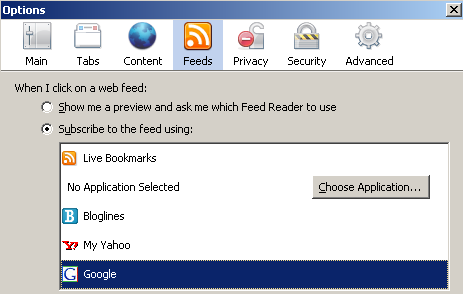
How you subscribe to a feed may depend on which Internet Browser you use. I use two different browsers, Internet Explorer 6.0 and Mozilla Firefox 2.0. Firefox is far more RSS friendly than IE 6. I have not upgraded to IE 7, so I cannot comment on IE 7 RSS capabilities. Before subscribing to a feed with Firefox, you need to configure your Firefox for your RSS Reader. From the Tools menu, select Options. Next, click the Feeds icon, then select the RSS Reader that you will be using. In my case, I selected Google as my default Firefox RSS Reader.
Now, whenever I find a feed I want to add to my RSS Reader (when using Firefox), I click the
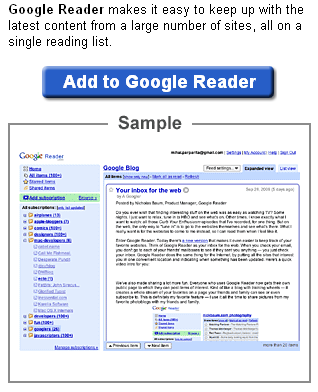
chicklet and I am prompted to add it to Google Reader.
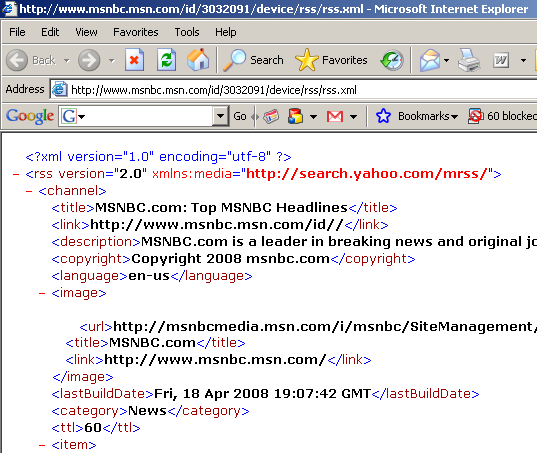
Internet Explorer 6 is not as RSS friendly. When I click the
chicklet using IE 6, it opens a new windows to the raw RSS feed. For example;
In this case, I would need to copy the URL (the http://yada.yada.yada) and paste it manually into my RSS Reader. It is kind of a pain. This is one of the main reason I avoid using Internet Explorer 6.
To make subscribing to RSS feeds easier with RSS unfriendly Internet Browsers, some sites will offer you several RSS Reader specific subscription options represented by icons. For example;
- MSNBC offers several icons that allow you to directly subscribe with Windows Live RSS Reader, Yahoo's RSS Reader, NetVibes RSS Reader, Bloglines RSS Reader, or an XML icon that allows you to subscribe with any other RSS Reader.
- CNN offers a direct access icon to subscribe via Yahoo's RSS Reader or the standard RSS chicklet.
- Many blog sites (including myGTDstuff.com) offer an array of RSS Reader options once you click the RSS chicklet (
).
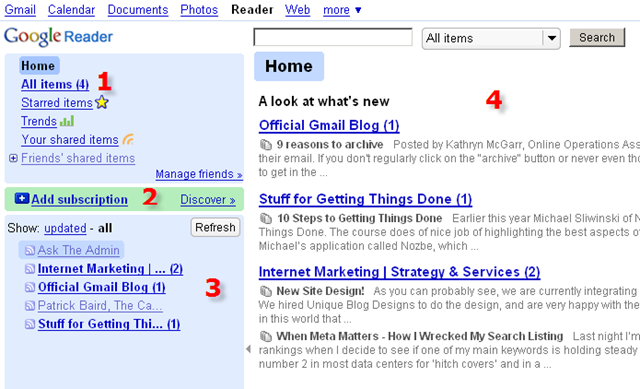
So you've subscribed to a number of RSS feeds, what does it look like? All RSS Readers are a bit different. Here is what it looks like using Google's RSS Reader. ![]()
- To view all of the new articles from all of your subscriptions click All Items.
- To add an additional RSS feed that you want to subscribe to, click Add Subscription. Google Reader has a cool feature called Discover. When you click the Discover link, Google will present you with a list of RSS feeds that it thinks you might like.
- Area 3 shows all of your active subscriptions. Click the name of each feed to view the latest articles.
- Area 4 is the reading section. The latest articles will appear in area 4.
Still confused? Check out this nicely crafted video titled RSS in Plain English.
I hope this gives you a good idea of what RSS is all about and how you can use RSS feeds to view website content from multiple sources (feeds) in one place. Feel free to contact me with any questions
Monday, December 28, 2009
A better (and free) anti-virus solution
I had a 3 user version of Norton Symantec virus protection that recently expired. I have 3 computers (no, not all mine) running without virus protection. As one who has had the challenge of chasing computer viruses around my employers 11,000+ computer network for an incredible number of hours, I know very well the importance of having a good and up to date virus scanning utility installed on every PC. Unfortunately, I am sick of having to pay the virus mafia “protection money” to Symantec, McAfee or Kaspersky every year for up to date virus protection. There has to be a better way, and I think Microsoft has it.
Microsoft has a relatively new offering called Security Essentials. Microsoft Security Essentials provides real-time protection for your home PC that guards against viruses, spyware, and other malicious software. Best of all, it’s free for home or home office users. But is it any good? I recently came across a study by AV-Comparatives.org showing that the Microsoft product compares very well with the other major anti-virus products. AV-Comparatives is an Austrian Non-Profit-Organization, which provides independent Anti-Virus software tests free to the public.
In the AV-Comparatives.org tests, Microsoft scored well on the performance tests (does it slow down your PC?), proactive/retrospective tests (does it catch old as well as new viruses and malware?), and the removal tests (how well does does it remove malware or viruses?). You can view all of the AV-Comparatives test results in the reports section of their website.
To install Microsoft Security Essentials, you simple visit the Security Essentials webpage and click the Download Now button. From there, answers a few prompts and you a good to go! Quick and easy. No confusing configuration questions. Just a simple install.
For more information on Microsoft Security Essentials, I would recommend visiting the following links;
- Review from ars technica
- PC World Review
- Article on sync-blog.com
Please leave a comment with your experience using Microsoft Security Essentials or your favorite anti-virus solution.
Sunday, December 20, 2009
Rainlendar - A customizable desktop calendar
For more details, see the Rainlendar home page. Rainlendar customized layouts, or skins, are available from a number of websites including;
Best of all the “lite” version of Rainlendar is free. See the Rainlendar Gallery for some nice screenshots showing Rainlendar’s capabilities.
Sunday, December 6, 2009
Public Speaking
Have you ever been nervous when you’ve had to speak in front of a group of people? Have you been quiet in meetings because you were worried about how others will perceive your comments? Has your anxiety kicked in when it was your turn to answer a question in class? If any of these questions apply to you, then I would highly recommend Scott Berkun’s new book titled Confessions of a Public Speaker . You will not be disappointed!
Scott’s latest book provides an insightful view into his adventures as a public speaker along with advice and tips on how you can improve your public speaking skills. Whether you are a frequent public speaker, a teacher, a business leader, a student, or a member of the local PTA, you will find this book useful. Scott’s down to earth, easily to understand writing style will serve you well no matter how often you find yourself having to stand in front of a group of people to present an idea, thought, or full-fledged presentation.
Check out these reviews:
- Chris Brogan, video review
- Blog Critics
- Developer Connection
- Wall Street Journal
<Click Here> to order your copy of Confessions of a Public Speaker
. You will not be disappointed!
Want to see the video trailer for this book? Check it out at this link.
Saturday, December 5, 2009
MedalFolders – Simple Access to Links
MedalFolders is a cool little freeware application that sits in your Windows System Tray and provides a simple, customizable way to access internet links, file folders, or applications. Once installed, you can add links to files, folders or internet sites by simply opening MedalFolders and dragging your links onto the MedalFolders application. Then, your links are accessible by simply clicking the MedalFolders icon in your System Tray.
I use MedalFolders for quick access to my project related links. For example, I have links in MedalFolders to project folders on my hard drive, project SharePoint sites and other intranet sites related to my current projects.
You can download your free copy of MedalFolders from their website at http://www.medalware.com/downloads.php.
Sunday, November 15, 2009
Word verification for comments
Lately, this blog has been inundated with spam comments. Given that, I’ve turned on word verification. Hopefully that will help slow down any automated comment spam bots.
I apologize for any inconvenience this causes for the regular readers and commenter's.
Sunday, April 12, 2009
My Weekly Review
For 2+ years now, I have religiously performed a weekly review. As with anything GTD, my processes have ebbed and flowed between simple and complex. In searching through my blog, I recently realized that my weekly review has not really changed much since I wrote about it in early 2008. I was pretty surprised. Other than a few small tweaks, the basics of the weekly review process have continued to work well over time. For me, that includes;
- Achieving Inbox Zero
- Following up on Projects
- Following up on Agendas
- Following up on People
- Deleting stuff I really don't need
- Checking and updating my Moleskine Notebook
...and at the end of the week (I have moved my weekly review to the end of my week rather than the beginning), I can achieve a mind like water!
To read the full article on my weekly review, Click Here.
Thursday, March 26, 2009
Xobni is out of Beta!
Today, the folks at Xobni announced that version 1.7 of their Outlook add-in, known as xobni, is their first full fledged non-Beta release! As with the earlier beta versions, xobni is still free!
What is xobni? Xobni (inbox spelled backwards) is a Microsoft Outlook add-in that indexes your e-mail, maintains your contacts (like nothing else you have ever seen!), maintains a library of attachments and let you manage your e-mails by threaded conversations.
I wrote about xobni a while back. I have been using xobni for over a year now. I cannot imagine Microsoft Outlook without it. If you are a heavy Microsoft Outlook user, I would highly recommend giving it a try.
In other xobni news released today, the company had this to say;
Cisco & Blackberry Invest $10M In Xobni
Today we are announcing the completion of our Series B with an investment from Blackberry Partners Fund. This completes our previously announced financing led by Cisco. This investment will allow us to strengthen our service and extend Xobni to new platforms. We will launch our first premium service this summer.
Quite impressive!
Wednesday, March 25, 2009
Dual Monitor Config Gets Reset
A while back I wrote about how to change the placement of your Dual-Monitor configuration in Windows.
Windows defaults to you having a 2nd monitor on the right side of your primary display. If you use the feature to extend your desktop to the new monitor, this can be a drag if your monitor is on the left side of your primary monitor.
To fix this, simply check your display properties... <Click to Read More>
A friend of mine recently noted that this works, but every time he undocks his laptop, then redocks his laptop, the configuration reverts back to the original setting. I had also run into this. The solution for me was to download and install an updated version of my laptop video drivers.
If you find that your dual monitor config is changing mysteriously on you, try to find an updated version of your video drivers. At a minimum, it should not make the problem any worse. At best, your problem is solved!
Tuesday, March 24, 2009
Do you Woot?
Have you checked out Woot.com? Woot is an online store that sells items, one per day. That's right, they only sell one, really cool item per day. They typically offer an item with a techie twist. The item descriptions come with consistently unusual and sometimes snarky descriptions, along with actual items spec's if you so desire.
Check out the "what is woot" page for more details. I have ordered from woot many times without a single problem. In fact, it was a pleasure. Once you clearly understand the woot policies (read the FAQ), you will be delighted with the great prices, inexpensive shipping (typically $5) and fast order-to-door service.
The experience is one of a kind. I would highly recommend it.
Monday, March 23, 2009
My Experience with Free Online Storage
This past week I tried two of the more popular free online storage sites.
- ADrive, a smaller company, in business since 2007, that offers a generous 50gb of free disk space.
- Microsoft, whose SkyDrive service offers 25gb of free space to users of its free Live service.
I was disappointed in both of them.
The ADrive service made it easy enough to sign up. After answering a few questions, I received a confirmation e-mail in my inbox. One click later, I was able to sign in to ADrive. The user interface was pretty basic, but that's what I was looking for. I did not need any fancy bells and whistles. I simply wanted safe, off-site storage of my picture files.
Using ADrive was not quite as easy as signing up. Through the "basic" interface, it allowed me to specify and copy only one file at a time. I have thousands of pictures. One file at a time won't work. There is a more advanced interface, written in Java, that is supposed to allow you to drag and drop multiple files. Using my Google Chrome browser, the Java errored out and the drag and drop interface would not work. Still optimistic, I try using Internet Explorer to access the drag-and-drop Java functionality. No luck.
After about a half hour of playing around, trying different combinations, I lost interest.
ADrive does offer something they call the ADrive desktop client which sounds like it has a nice Windows based interface to upload and download files. Unfortunately, the desktop client is not included with the Basic (free) plan. At a minimum, the ADrive desktop client will run you $6.95 per month. Here is a snapshot of what you get with the ADrive free and pay plans.
Next up, Microsoft SkyDrive
The Microsoft SkyDrive offering is part of the Windows Live initiative. Windows Live is Mircrosofts answer to the myriad of online services that Google and Yahoo offer. Signing up for SkyDrive requires you to have a Windows Live (or Hotmail) account. I had one already, so signing up was a snap. Actually, signing up was not necessary. I simple signed into live.com and SkyDrive popped up as one of my available options.
Time to upload some files! I simply select a folder, click upload and... WTF! ...I am faced with a screen with 5 lines for names of files and 5 upload buttons. Yes, sports-fans, that's right, only 5 files can be uploaded at a time! There has to be a better way.
...and there was, sort of. After a lot of digging through online help, I uncovered a reference to an Active X component that I could download to drag-and-drop files into my SkyDrive. Cool!
Well, almost cool. First, I found that the Active X control was not available to me when I was running Google Chrome, so I had to fire up Internet Explorer. Second, once I installed the Active X control, I could not drag-and-drop a directory (folder). Only file-by-file. Bummer. I have hundreds of directories. I assumed drag-and-drop meant directories as well as files. Oh well.
All in all, I was quite disappointed in both services. For now, I will resort to the old standbys; external disk backup, DVD backup, or at a minimum, saving my most important pictures on Picassa.
I have heard rumors that Google will be offering a service called GDrive sometime in 2009. As has been the case with search, e-mail (gmail), or RSS Readers (Google Reader), Google will get it right where others have not. I think I'll wait out the rumors and hope for a GDrive solution.
Saturday, March 21, 2009
Berkun on Innovation
Last week, Scott Berkun, author of Making Things Happen: Mastering Project Management
(previosly published as The Art of Project Management) and The Myths of Innovation
, gave a one hour Webcast called "How progress happens: the down and dirty truths and secrets that make innovation possible". I thought is was great. Scott did not delve into the "how" of being being innovative. Scott's contention is that people, humans, by nature are innovative. It was not about tools, methodologies or technologies. Scott's talk focused on the challenges innovative people face and gave tips for driving innovation in your life, company or organization.
You can watch the recording on the O'Reilly webcast page or view it in higher resolution on the O'Reilly YouTube channel.
Saturday, March 7, 2009
The Economic Crisis Explained
Do you want to know what or who or how the recent economic crisis has come about in simple, easy to understand terms? Then I would recommend you check out a recent episode of This American Life titled Bad Bank. This is perhaps the best, simple, easy to understand, and scary at the same time, explanation of the global financial crisis that we are experiencing.
<CLICK HERE> to listen to this captivating and informative 1 hour radio show.
Synopsis:
The collapse of the banking system explained, in just 59 minutes. Our crack economics team—the guys who explained the mortgage crisis, Alex Blumberg and NPR’s Adam Davidson—are back to help all of us understand the news. For instance, when we talk about an insolvent bank, what does it actually mean, and why are we giving hundreds of billions of dollars to rich bankers who screwed up their own businesses? Also, two guys go to New Jersey to look at a toxic asset.
Thursday, February 5, 2009
Search and Replace for Multiple Text Files
Today I needed to search through a series of text files, find a word (in this case a username), and change it to something else. I could have easily (albeit time consuming) opened each file in notepad and run a search and replace, but I had hundreds of files to interrogate and change.
I came across a freeware program called grepWin to help me. grepWin allows you to quickly and easily search for and replace text strings in multiple text files. ...and for the advanced users, grepWin allows you to search and replace text using regular expressions. How cool is that?!?!?!?!
grepWin is a must have utility for anyone that has to deal with text files on a regular basis.
Sunday, February 1, 2009
Desktop Icon Hack Revisited
I recently wrote about a cool way to position the icons on your Windows desktop with a little freeware program called IconLayout. This neat little app allows you to;
- Shrink your desktop icons
- Align the icon text to the right of the icon graphic
- Save and restore how your icons are laid out on your desktop
IconLayout did a fine job with #1 and #2, but I found that it did not do a very good job with #3. After a reboot, after a screen resolution change, or an inadvertent scramble of my desktop, and most of the time, IconLayout would not restore the icon layout to the way I wanted it. Quite frustrating.
This lead me on a search for a new program that does the same, albeit more reliably. After a few hours of searching, I found a neat little program that fits the bill. The program is called D-Color XP. The D-Color XP author pitches the apps ability to change the appearance of the desktop icon text foreground and background colors. Nice to do, but not exactly what I wanted it for. In addition to changing the color of icon text, D-Color XP can;
- Shrink your desktop icons
- Align the icon text to the right of the icon graphic
- Save and restore how your icons are laid out on your desktop
...all for the right price: free. I have been using D-Color XP for a few days now and it's been working flawlessly. If you are looking for the same functionality in a small, reliable, freeware program, I'd highly recommend giving D-Color XP a try.
You can configure D-Color XP to load when Windows starts. When it runs, it arranges your desktop icons and docks itself in the Windows system tray. Following is a quick screen shot of D-Color XP in action.
No Turn-By-Turn Voice Navigation on my iPhone 4!
A friend of mine gave me a ride home recently. We were not sure how to get from Point A to Point B so he fired up his iPhone 4S Maps App...
-
A few days ago, a colleague of mine mentioned that he could not see any images sent to him in Outlook e-mail messages. His e-mails simply ...
-
What is that odd looking Windows Logo on my keyboard? It’s the called the Windows Logo Key (clever, eh?). The Windows Logo Key is us...
-
On occasion, I need to add a comment or text to a PDF file and send it to a colleague. Unfortunately, Adobe’s free PDF Reader does not allo...