Showing posts with label Internet. Show all posts

Tuesday, December 29, 2009

What is RSS?

A while back, I posted an article describing RSS Feeds.  As a loyal RSS user, I have decided to reposted the article.  My hope is to help those not using  an RSS Reader understand what they are missing. 

Why should you care about RSS?  RSS is an incredibly simple and easy way to manage the ton of information available on the websites and blogs that you visit.  An RSS Reader is like a newspaper.  With an RSS Reader, you are provided with a collection of articles from your favorite blogs and websites in once place.  Some you will read.  Some you will not.  With an RSS Reader you can quickly skim through, skip, or read the articles of interest.  With an RSS Reader, you no longer need to jump from site to site to site to find the latest information that you are interested in.

Enough from me on the topic, read on for the full article about RSS.  Enjoy!

A Simple Guide to RSS

As you surf the web, I am sure you have seen references to RSS.  As a minimum, I am sure you have at least run across the universal RSS icon;  image.  So what does it mean?

RSS stands for Really Simply Syndication.  RSS has also been called a "feed" or "Channel".  Basically, through RSS, a blog or web-site content can be read like an online newspaper.  That is; article by article.  RSS readers allow you to collect many websites and/or blogs and read them in a clean, organized fashion.  Rather than jumping from website to website or blog to blog, an RSS reader will present all the content (articles) to you in one place.

To start with RSS, you need an RSS reader (aka feed reader).  Which RSS reader is best?  There are many available, it's up to you.  Here are the most popular RSS readers that myGTDstuff.com readers use:

I prefer Google Reader.  It's simple, has a clean interface, and shares the same user-id and password with other Google services (Gmail, Picassa, Docs, etc).

Assuming you now have an RSS Reader, how do you use it?  This is where things can get a bit confusing.  First, you need to add a few "feeds" to your RSS reader.  Again, a feed, is simply content from a blog or website.  Adding feeds to your RSS Reader (aka subscribing) can be as simple as clicking the universal RSS icon image, also known as a chicklet, or copying and pasting the address (URL) of the RSS feed into your RSS Reader.

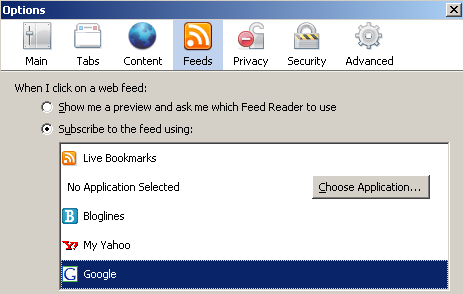
How you subscribe to a feed may depend on which Internet Browser you use.  I use two different browsers, Internet Explorer 6.0 and Mozilla Firefox 2.0.  Firefox is far more RSS friendly than IE 6.  I have not upgraded to IE 7, so I cannot comment on IE 7 RSS capabilities.  Before subscribing to a feed with Firefox, you need to configure your Firefox for your RSS Reader.  From the Tools menu, select Options. Next, click the Feeds icon, then select the RSS Reader that you will be using.  In my case, I selected Google as my default Firefox RSS Reader.
image

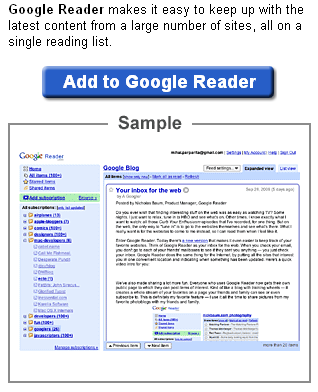
Now, whenever I find a feed I want to add to my RSS Reader (when using Firefox), I click the image chicklet and I am prompted to add it to Google Reader.
image

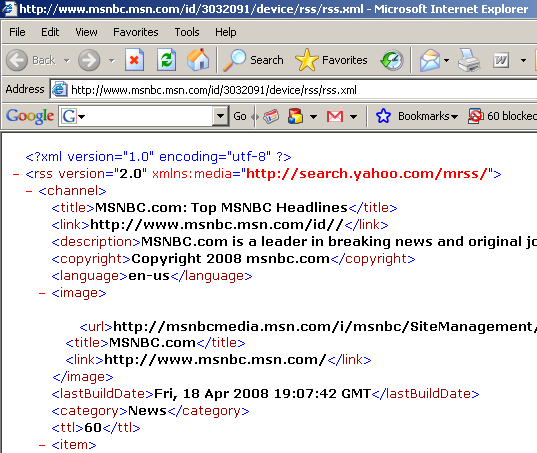
Internet Explorer 6 is not as RSS friendly.  When I click the image chicklet using IE 6, it opens a new windows to the raw RSS feed.  For example;
image

In this case, I would need to copy the URL (the http://yada.yada.yada) and paste it manually into my RSS Reader.  It is kind of a pain.  This is one of the main reason I avoid using Internet Explorer 6.

To make subscribing to RSS feeds easier with RSS unfriendly Internet Browsers, some sites will offer you several RSS Reader specific subscription options represented by icons.  For example;

  • MSNBC offers several icons that allow you to directly subscribe with Windows Live RSS Reader, Yahoo's RSS Reader, NetVibes RSS Reader, Bloglines RSS Reader, or an XML icon that allows you to subscribe with any other RSS Reader. 
    image
  • CNN offers a direct access icon to subscribe via Yahoo's RSS Reader or the standard RSS chicklet. 
    image
  • Many blog sites (including myGTDstuff.com) offer an array of RSS Reader options once you click the RSS chicklet (image). 
    image


So you've subscribed to a number of RSS feeds, what does it look like?  All RSS Readers are a bit different.  Here is what it looks like using Google's RSS Reader. 
image

  1. To view all of the new articles from all of your subscriptions click All Items.
  2. To add an additional RSS feed that you want to subscribe to, click Add Subscription.  Google Reader has a cool feature called Discover.  When you click the Discover link, Google will present you with a list of RSS feeds that it thinks you might like.
  3. Area 3 shows all of your active subscriptions.  Click the name of each feed to view the latest articles.
  4. Area 4 is the reading section.  The latest articles will appear in area 4.


Still confused?  Check out this nicely crafted video titled RSS in Plain English.

I hope this gives you a good idea of what RSS is all about and how you can use RSS feeds to view website content from multiple sources (feeds) in one place.  Feel free to contact me with any questions

Tuesday, March 24, 2009

Do you Woot?

image

Have you checked out Woot.comWoot is an online store that sells items, one per day.  That's right, they only sell one, really cool item per day.  They typically offer an item with a techie twist.  The item descriptions come with consistently unusual and sometimes snarky descriptions, along with actual items spec's if you so desire.

Check out the "what is woot" page for more details.  I have ordered from woot many times without a single problem.  In fact, it was a  pleasure.  Once you clearly understand the woot policies (read the FAQ), you will be delighted with the great prices, inexpensive shipping (typically $5) and fast order-to-door service. 

The experience is one of a kind.  I would highly recommend it.

Monday, March 23, 2009

My Experience with Free Online Storage

This past week I tried two of the more popular free online storage sites. 

  1. ADrive, a smaller company, in business since 2007, that offers a generous 50gb of free disk space.
  2. Microsoft, whose SkyDrive service offers 25gb of free space to users of its free Live service.

I was disappointed in both of them.

image

The ADrive service made it easy enough to sign up.  After answering a few questions, I received a confirmation e-mail in my inbox.  One click later, I was able to sign in to ADrive.  The user interface was pretty basic, but that's what I was looking for.  I did not need any fancy bells and whistles.  I simply wanted safe, off-site storage of my picture files.

Using ADrive was not quite as easy as signing up.  Through the "basic" interface, it allowed me to specify and copy only one file at a time.  I have thousands of pictures.  One file at a time won't work.  There is a more advanced interface, written in Java, that is supposed to allow you to drag and drop multiple files.  Using my Google Chrome browser, the Java errored out and the drag and drop interface would not work.  Still optimistic, I try using Internet Explorer to access the drag-and-drop Java functionality.  No luck.

After about a half hour of playing around, trying different combinations, I lost interest.

ADrive does offer something they call the ADrive desktop client which sounds like it has a nice Windows based interface to upload and download files.  Unfortunately, the desktop client is not included with the Basic (free) plan.  At a minimum, the ADrive desktop client will run you $6.95 per month.  Here is a snapshot of what you get with the ADrive free and pay plans.

image

Next up, Microsoft SkyDrive

image

The Microsoft SkyDrive offering is part of the Windows Live initiative.  Windows Live is Mircrosofts answer to the myriad of online services that Google and Yahoo offer.  Signing up for SkyDrive requires you to have a Windows Live (or Hotmail) account.  I had one already, so signing up was a snap.  Actually, signing up was not necessary.  I simple signed into live.com and SkyDrive popped up as one of my available options.

image

Time to upload some files!  I simply select a folder, click upload and...  WTF! ...I am faced with a screen with 5 lines for names of files and 5 upload buttons.  Yes, sports-fans, that's right, only 5 files can be uploaded at a time!  There has to be a better way.

...and there was, sort of.  After a lot of digging through online help, I uncovered a reference to an Active X component that I could download to drag-and-drop files into my SkyDrive.  Cool!

Well, almost cool.  First, I found that the Active X control was not available to me when I was running Google Chrome, so I had to fire up Internet Explorer.  Second, once I installed the Active X control, I could not drag-and-drop a directory (folder).  Only file-by-file.  Bummer.  I have hundreds of directories.  I assumed drag-and-drop meant directories as well as files.  Oh well.

All in all, I was quite disappointed in both services.  For now, I will resort to the old standbys; external disk backup, DVD backup, or at a minimum, saving my most important pictures on Picassa.

image

I have heard rumors that Google will be offering a service called GDrive sometime in 2009.  As has been the case with search, e-mail (gmail), or RSS Readers (Google Reader), Google will get it right where others have not.  I think I'll wait out the rumors and hope for a GDrive solution.

Wednesday, January 14, 2009

Jott to Cancel its Free Service


Starting February 2, 2009 Jott.com will eliminate it's free service.  Albeit limited, I was a big fan of Jott's free service.  Jott Express worked great on my PC, Jott for the iPhone worked "good enough" on my iPod Touch.  According to John Pollard, Jott CEO and Co-founder;

If you’re reading this, you’ve probably heard that we’re ending Jott’s free services (Jott Basic and Jott Notepad for the iPhone). Unfortunately, it’s true, beginning on February 2nd. Plans for current paying customers are not changing.

I know you’ll have questions, so I wanted to get out in front and tell you why we’re doing this. If you already know you want to upgrade, scroll down for instructions (and a nice discount), but either way I hope you’ll read further.

Our #1 priority is to keep Jott a company that innovates on behalf of customers. It’s why Shree and I started the company in early 2006, and it’s a passion shared by everyone who works here.

Whether you are a paid or a free customer, we thank you for all of the support you’ve given us over the past couple of years, and the support you’ll hopefully give us in the future.

More details can be found on the official Jott blog. Is Jott worth the 4 bucks a month for their standard package?  I'm not sure.  I would love to get the Jott for Outlook functionality.  I'm just not sure it's worth the $4 per month.

Got an opinion?  Know of an alternative Jott?  Got a few good reasons why someone should pay for Jott?  Leave a comment and let me know your thoughts!

Monday, September 1, 2008

Google takes web browsing to the next level; Here comes Chrome!

Today, Google announced their own open source web browser called Chrome.  The first beta version of Google Chrome will be released for Windows based PC’s tomorrow.  What will Google Chrome do different from Microsoft’s Internet Explorer or Mozilla Firefox?  Per Google;

Under the hood, we were able to build the foundation of a browser that runs today's complex web applications much better. By keeping each tab in an isolated "sandbox", we were able to prevent one tab from crashing another and provide improved protection from rogue sites. We improved speed and responsiveness across the board. We also built a more powerful JavaScript engine, V8, to power the next generation of web applications that aren't even possible in today's browsers.

Google has done some great things with Search and Advertising during their short existence as a company.  I’m excited to see what they have up their sleeves for the Internet Browser market.  At a minimum, this will be an exciting dual to watch with Microsoft!

For more information on Google Chrome, see;

Keep checking back to the Google Blog for details on how to get the beta version of Google Chrome. 

Will Google Chrome make you more productive?  Time will tell.  In the interim, keep your eye on the browser battle with Microsoft.   It will be fun to watch!

Friday, August 29, 2008

Jott is out of Beta – Is it worth paying for?

I am a big fan of Jott.  What is JottJott is a (previously all free) service that allows you to call a toll free number, record a message, and have it transcribed and emailed to someone (or yourself).  I wrote about Jott last year.  I Jott messages to myself when I am on the road.  I Jott messages to myself if I am in the grocery store.  I Jott messages to myself just about anywhere.  With Jott, I never forget an important thought or to-do because it ends up in my e-mail inbox.

Apparently I was not the only one who loved Jott.  Many. many, many more people did too.  In fact, it became so popular, the makers of Jott decided that by charging for Jott, they could turn this Beta product into a viable business.  Time will tell if they are right.  I love Jott, but I’m not convinced it’s worth paying for.  Fret not; if you are like me and not convinced that Jott is worth paying for - Jott does come in a free, ad supported flavor.

Jott now comes in 3 flavors;

Jott Pro
$12.95/month
30 second max recording time
Unlimited Voice-to-Text Notes & Reminders
Manage Notes & Lists In your email or Online at Jott.com
Includes Hands-free Email & Text Messaging
Available Jott Apps includes; Jott for BlackBerry, Jott for Outlook, Jott Express, and Jott for iPhone

Jott
$3.95/month
15 second max recording time
Unlimited Voice-to-Text Notes & Reminders
Manage Notes & Lists In your email or Online at Jott.com
Includes Hands-free Email & Text Messaging
Available Jott Apps includes; Jott for Outlook, Jott Express, and Jott for iPhone

Jott Basic
Free but ad-supported
15 second max recording time
Unlimited Voice-to-Text Notes & Reminders
Manage Notes & Lists Online at Jott.com
No Hands-free Email & Text Messaging
Available Jott Apps includes; Jott Express, and Jott for iPhone  

I was a bit disappointed at first.  I did not feel like Jott Basic would serve my needs.  I really liked the fact that I could Jott directly to my e-mail inbox.  With Jott Basic, e-mail directly to my inbox was not an option.  My e-mail inbox was my safe place for things to land.  I could go to Jott.com, login, and retrieve my messages - But, what a drag.  I’m not disciplined enough for that!

That is, until I discovered Jott Express.  Jott Express is a new application from Jott that allow you to create a desktop window into your Jott.com inbox.  Jott Express acts as an open window showing all of your incoming Jotts in real-time.  With Jott Express you can categorize your Jotted messages, add a priority flag, set a text message reminder or mark your Jotted tasks as complete.  For me, Jott Express make Jott Basic (Jott free!) worthwhile.

I’d highly recommend giving Jott Basic with Jott Express a try.  It’s free, you can’t go wrong!  Visit www.Jott.com for more information.

Do you use Jott?  Are you using Jott in a creative way?  Leave a comment and share your Jott experience!

Wednesday, July 2, 2008

Do You RSS?

Are you using an RSS Reader to read your favorite blogs and web sites?  If not, you should be!  RSS is the most efficient way to weed through hundreds (or thousands) of web articles quickly and easily.  An RSS reader will allow you to take in the stories of interest to you and skip through all the clutter.

If you are new to RSS, read my article titled A Simple Guide to RSS.  Have questions about RSS?  Leave a comment and I’ll do my best to answer.

Here is a little bit about my RSS setup:

Reader: Google Reader

Preferred Hardware:  My Apple IPOD Touch.  Google has a great interface for the iTouch/iPhone

Here is a sample of some of my favorite RSS Feeds:

Friday, May 30, 2008

Be Part of a World Record!

Download Day The  Mozilla Corporation (a wholly-owned subsidiary of the non-profit Mozilla Foundation) is hoping to set the Guinness world record for the most software downloads in a 24 hour period.  This record breaking event is being planned to coincide with the release of version 3 of their Firefox browser.  The release date has not been set, but you can sign up to be part of  this record breaking event by pledging your participation in what is being called Download Day at spreadfirefox.com.

If you are not familiar with Firefox; Firefox is an open-source, free, Internet browser alternative to Microsoft's Internet Explorer.  Firefox is filled with far more features than Internet Explorer and the upcoming version 3 is considerably faster.  I am currently running a beta version of Firefox 3 and I love it!

So, pledge to participate in Download Day.  When the date is set, you will be informed via e-mail.  On Download Day, get yourself the fastest, most feature filled Internet Browser available.  ...and be part of a Guinness world record!


Technically, the Guinness world record does not yet exist.  Per theregister.uk.co;

Mozilla is trying for a record in a new category, according to a representative of the firm. That means it doesn't have an existing mark to better. The open source browser outfit aims to secure over 1.6m downloads over 24 hours.

But heck, world records need to start somewhere.  Be part of it!

Special THANKS to Kyle for the tip...

Tuesday, April 22, 2008

A Simple Guide to RSS

As you surf the web, I am sure you have seen references to RSS.  As a minimum, I am sure you have at least run across the universal RSS icon;  image.  So what does it mean? 

RSS stands for Really Simply Syndication.  RSS has also been called a "feed" or "Channel".  Basically, through RSS, a blog or web-site content can be read like an online newspaper.  That is; article by article.  RSS readers allow you to collect many websites and/or blogs and read them in a clean, organized fashion.  Rather than jumping from website to website or blog to blog, an RSS reader will present all the content (articles) to you in one place. 

To start with RSS, you need an RSS reader (aka feed reader).  Which RSS reader is best?  There are many available, it's up to you.  Here are the most popular RSS readers that myGTDstuff.com readers use:

I prefer Google Reader.  It's simple, has a clean interface, and shares the same user-id and password with other Google services (Gmail, Picassa, Docs, etc). 

Assuming you now have an RSS Reader, how do you use it?  This is where things can get a bit confusing.  First, you need to add a few "feeds" to your RSS reader.  Again, a feed, is simply content from a blog or website.  Adding feeds to your RSS Reader (aka subscribing) can be as simple as clicking the universal RSS icon image, also known as a chicklet, or copying and pasting the address (URL) of the RSS feed into your RSS Reader. 

How you subscribe to a feed may depend on which Internet Browser you use.  I use two different browsers, Internet Explorer 6.0 and Mozilla Firefox 2.0.  Firefox is far more RSS friendly than IE 6.  I have not upgraded to IE 7, so I cannot comment on IE 7 RSS capabilities.  Before subscribing to a feed with Firefox, you need to configure your Firefox for your RSS Reader.  From the Tools menu, select Options. Next, click the Feeds icon, then select the RSS Reader that you will be using.  In my case, I selected Google as my default Firefox RSS Reader.

image

Now, whenever I find a feed I want to add to my RSS Reader (when using Firefox), I click the image chicklet and I am prompted to add it to Google Reader.

image

Internet Explorer 6 is not as RSS friendly.  When I click the image chicklet using IE 6, it opens a new windows to the raw RSS feed.  For example;

image

In this case, I would need to copy the URL (the http://yada.yada.yada) and paste it manually into my RSS Reader.  It is kind of a pain.  This is one of the main reason I avoid using Internet Explorer 6.

To make subscribing to RSS feeds easier with RSS unfriendly Internet Browsers, some sites will offer you several RSS Reader specific subscription options represented by icons.  For example;

  • MSNBC offers several icons that allow you to directly subscribe with Windows Live RSS Reader, Yahoo's RSS Reader, NetVibes RSS Reader, Bloglines RSS Reader, or an XML icon that allows you to subscribe with any other RSS Reader.
    image
  • CNN offers a direct access icon to subscribe via Yahoo's RSS Reader or the standard RSS chicklet.
    image
  • Many blog sites (including myGTDstuff.com) offer an array of RSS Reader options once you click the RSS chicklet (image).
    image


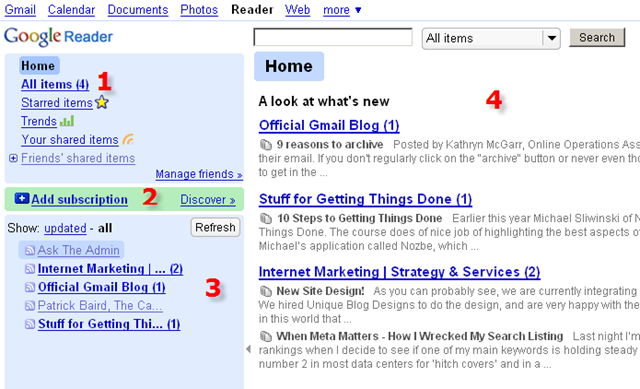
So you've subscribed to a number of RSS feeds, what does it look like?  All RSS Readers are a bit different.  Here is what it looks like using Google's RSS Reader.
image

  1. To view all of the new articles from all of your subscriptions click All Items.
  2. To add an additional RSS feed that you want to subscribe to, click Add Subscription.  Google Reader has a cool feature called Discover.  When you click the Discover link, Google will present you with a list of RSS feeds that it thinks you might like.
  3. Area 3 shows all of your active subscriptions.  Click the name of each feed to view the latest articles.
  4. Area 4 is the reading section.  The latest articles will appear in area 4.


Still confused?  Check out this nicely crafted video titled RSS in Plain English.

I hope this gives you a good idea of what RSS is all about and how you can use RSS feeds to view website content from multiple sources (feeds) in one place.  Feel free to contact me with any questions.

Saturday, April 19, 2008

The Future of TV

We cannot perform at our peak 24 hours a day, 7 days a week.  On occasion we need to disengage, kick back, relax and re-energize.  For me, I prefer to relax with a good movie or television show.  The bummer about TV is that inevitably, what I want to see, is not on when I have time to sit down and watch it (yes, I don't own a Tivo).  The Internet is changing that.

If I may be so bold; This technology shift, that finally merges TV, Movies and the Internet, is called HuluHulu is a website offering a a ton of popular TV shows and full length movies on-demand.  ...and here's the best part; It's all Free!

Hulu is a joint venture between NBC Universal and News Corp.  Hulu offers online TV and Movies from more than 50 content providers including FOX, MGM, NBC, Sony Pictures Television Warner Bros., and Lionsgate.  Hulu was founded in March 2007 and officially launched their website on March 12, 2008.  Hulu has a simple, easy to use, easy to search, easy to navigate user interface.  What separates Hulu from any of the other online video websites is the huge amount of quality online content.  The folks who own Hulu, own a ton of content.  The technology to display the content already existed, NBC and News Corp just needed to pony up the initial content.  And they did; making Hulu the poster child for the future of on-demand television.

Hulu offers full-length episodes of not only current hit shows like My Name is Earl, The Simpsons and The Office but also classics like The Bob Newhart Show, Miami Vice and Hill Street Blues, and in some cases, as with Arrested Development or Friday Night Lights, they have every episode ever aired. The full length movie collection includes Field of Dreams, Meet Joe Black, and Psycho, to name a few.

I would highly recommend giving Hulu a try.  Click play below for a quick introduction to Hulu.

Special shout-out to my son Kyle for turning me on to Hulu!  Thanks Kyle! image

Friday, March 7, 2008

Shortcut Keys in Mozilla Firefox

image I use Firefox as the primary browser on my home PC.  Why Firefox instead of Internet Explorer?

  • Firefox seems to load web pages faster
  • Firefox does not generate Windows errors for me like IE does
  • Better tabbed browsing than IE
  • The bookmark maintenance features in Firefox are better than IE
  • Incredible add-in support.  There are tons of add-ins available for Firefox!
  • More Keyboard Shortcuts!

...and that's just the beginning.  If you have not dumped Windows Internet Explorer for Firefox, I'd highly recommend giving Mozilla Firefox a try.

Now, back to the subject of this post!  Firefox keyboard shortcuts.  As I noted in my post on Internet Explorer Keyboard Shortcuts, my favorite Explorer shortcut keys are;

CTRL-ENTER: This is my favorite.  When typing in the URL of a website, you can skip the "www" and the ".com".  For example, in the address box, enter google, then CTRL-ENTER and low and behold, the address turns into www.google.com

CTRL-F: Find on the page.  Looking for a specific word, use CTRL-F.

CTRL-N: opens a new Internet Explorer Window.

ALT-LeftArrow & ALT-RightArrow: Simulates the Explorer Back and Forward button.  Quite handy.

Guess what?  These all also work in Mozilla Firefox.  Very cool!  No relearning keyboard shortcuts.  In addition to my fav's, Firefox includes a ton of other keyboard shortcuts.  Following is the complete reference.

Keyboard Shortcuts

Command

Shortcut

Add Bookmark

Ctrl+D

Back

Backspace
Alt+<-

Bookmarks

Ctrl+B
Ctrl+I

Caret Browsing

F7

Close Tab

Ctrl+W
Ctrl
+F4

Close Window

Ctrl+Shift+W
Alt+F4

Complete .com Address

Ctrl+Enter

Complete .net Address

Shift+Enter

Complete .org Address

Ctrl+Shift+Enter

Copy

Ctrl+C

Cut

Ctrl+X

Decrease Text Size

Ctrl+-

Delete

Del

Delete Individual Form Auto-Complete Entry

Shift+Del

DOM Inspector

Ctrl+Shift+I

Downloads

Ctrl+J

Find Again

Ctrl+G
F3

Find As You Type Link

'

Find As You Type Text

/

Find Previous

Ctrl+Shift+G
Shift+F3

Find in This Page

Ctrl+F

Forward

Shift+Backspace
Alt+->

Go Down One Line

Down

Go Up One Line

Up

Go Down One Page

PageDown

Go Up One Page

PageUp

Go to Bottom of Page

End

Go to Top of Page

Home

Full Screen

F11

Help

F1

History

Ctrl+H

Home Page

Alt+Home

Increase Text Size

Ctrl++

Move to Next Frame

F6

Move to Previous Frame

Shift+F6

New Tab

Ctrl+T

Next Tab

Ctrl+Tab
Ctrl+PageDown

New Window

Ctrl+N

Open File

Ctrl+O

Open Link

Enter

Open Link in New Tab

Ctrl+Enter

Open Link in New Window

Shift+Enter

Open Address in New Tab

Alt+Enter

Page Source

Ctrl+U

Paste

Ctrl+V

Previous Tab

Ctrl+Shift+Tab
Ctrl+PageUp

Print

Ctrl+P

Redo

Ctrl+Shift+Z
Ctrl+Y

Reload

F5
Ctrl+R

Reload (override cache)

Ctrl+F5
Ctrl+Shift+R

Restore Text Size

Ctrl+0

Save Page As

Ctrl+S

Save Link Target As

Alt+Enter

Select All

Ctrl+A

Select Location Bar

Ctrl+L
Alt+D

Select Next Auto-Complete entry in text field

Down

Select Previous Auto-Complete entry in text field

Up

Select Next Search Engine in Search bar

Ctrl+Down

Select Previous Search Engine in Search bar

Ctrl+Up

Select Tab [1 to 8]

Ctrl+[1 to 8]

Select Last Tab

Ctrl+9

Stop

Esc

Toggle Checkbox

Spacebar

Undo

Ctrl+Z

Web Search

Ctrl+K

 Mouse Shortcuts

Command

Shortcut

Back

Shift+Scroll down

Close Tab

Middle-click on tab

Decrease text size

Crtl+Scroll up

Forward

Shift+Scroll up

Increase Text Size

Ctrl+Scroll down

New Tab

Double-Click on Tab Bar

Open in Background Tab

Ctrl+click
Middle-click

Open in Foreground Tab

Ctrl+Shift+click
Shift+Middle-click

Open in New Window

Shift+click

Paste URL and Go

Middle-click on Tab

Reload (override cache)

Shift+Reload button

Save Page As

Alt+click

Scroll line by line

Alt+Scroll

Happy surfing!

No Turn-By-Turn Voice Navigation on my iPhone 4!

A friend of mine gave me a ride home recently.   We were not sure how to get from Point A to Point B so he fired up his iPhone 4S Maps App...